Table of contents
What is Excel automation?
Excel automation is the practice of setting up spreadsheet tasks to run on their own, without you performing each step by hand. Instead of copying values, applying the same formulas, or reformatting data manually every time, you define the logic once and let Excel or a connected tool carry it out. Automation in Excel usually handles the repetitive, rule-based work: pulling data in, cleaning it, calculating results, and pushing outputs into a report or another file. Because Microsoft Excel is where so much daily work lives, automating it means the same spreadsheet no longer needs manual attention every time it changes.
Traditionally, this is done with built-in tools. Macros and VBA record or script sequences of actions, Power Query pulls and transforms data from multiple sources, and formulas and functions calculate results automatically as inputs change.
The main benefits are consistent: you save time on manual work, you cut the human errors that creep into repeated data entry, and you can scale a process to far more rows or files than you could handle by hand. It is worth being clear that Excel automation does not always involve AI. Most of these traditional methods follow fixed rules you set up in advance, with no intelligence behind them.
What is Excel automation with an AI agent?
Excel automation with an AI agent means using an autonomous, prompt-driven assistant to carry out spreadsheet tasks, rather than pre-scripted rules. An AI agent is a system built on a language model that can understand a request written in plain language, plan the steps needed, and act on them across a task.
The main benefits are consistent: you save time on manual work, you cut the human errors that creep into repeated data entry, and you can scale a process to far more rows or files than you could handle by hand.
It is worth being clear that Excel automation does not always involve AI. Most of these traditional methods follow fixed rules you set up in advance, with no intelligence behind them. Setting up data validation rules is another common built-in method, keeping entries consistent so an excel spreadsheet stays clean before anything downstream runs on it.
For a broader sense of what these systems do in practice, these AI agents examples show the same reasoning applied well beyond spreadsheets.

Build no-code AI Agents in minutes
Move from chatting with AI to getting things done.
Chat with leading AI models
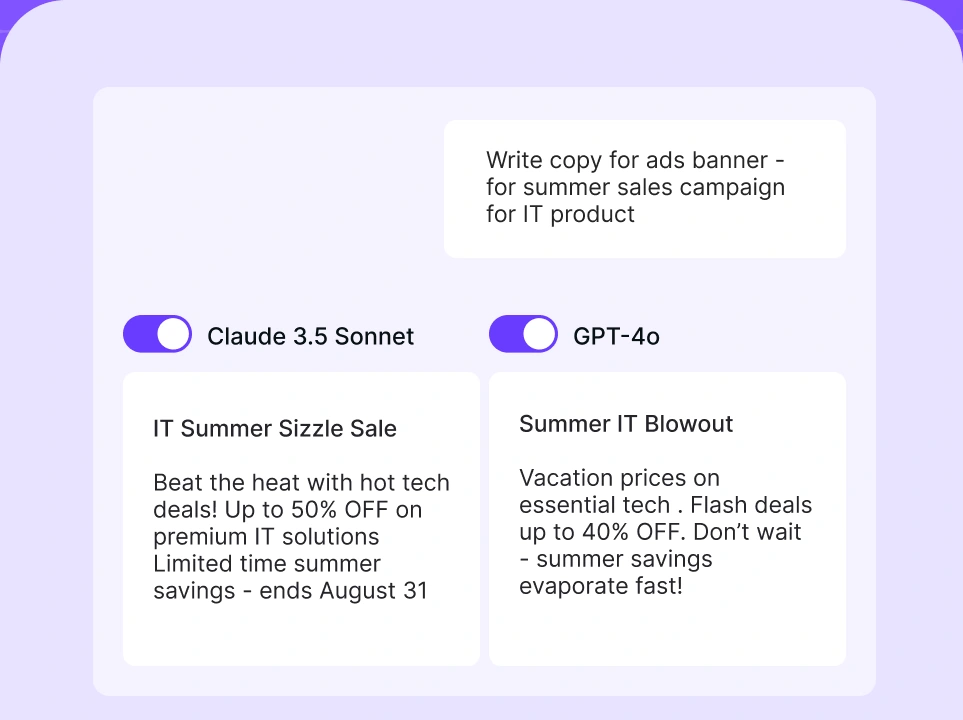
Compare AI models
Build no-code AI Agents

What can you automate in Excel with an AI agent?
An AI agent can automate the parts of spreadsheet work that normally need judgment, not just fixed steps. Because it reads your request and reasons through the data, it handles tasks that would be hard to script cleanly. In practice, this lets you automate Excel tasks that used to take real focus, from cleaning a sheet to pulling out the relevant data and writing it up. Here are the main things you can hand off:
- Generating formulas. Describe the calculation you want in plain language, and the agent writes the correct formula or function for you, no syntax memorization needed.
- Analyzing datasets. Point the agent at a sheet and ask questions about it, and it works through the numbers to surface trends, totals, and comparisons.
- Summarizing spreadsheet data. Turn a dense table into a short written summary that explains what the data shows, ready to drop into a report or email.
- Detecting anomalies. The agent scans for outliers, duplicates, and values that break the pattern, flagging problems you would otherwise miss by eye.
- Categorizing information. Messy free-text entries get sorted into consistent categories, so a column of varied inputs becomes clean, groupable data.
- Creating reports. From raw figures, the agent builds a structured report with the tables, and summaries you asked for, and can even export it into another format.
These are only a starting point. For a wider view of what agents take on across roles and departments, see these AI agent use cases.
Excel automation examples and use cases
Excel automation shows up across almost every team that works with data, and the examples below reflect how different industries put it to use. Each one replaces hours of manual spreadsheet work with a process that runs reliably. Teams reach for this to automate repetitive tasks and cut the manual processes that slow a week down, freeing people for work that actually needs a human.
- Data cleaning. Standardizing formats, removing duplicates, and fixing inconsistent entries across large datasets before analysis.
- Report generation. Turning raw monthly figures into formatted reports automatically, including Excel to Word document automation for written summaries and Excel to PowerPoint automation for slide-ready charts.
- Invoice processing. Extracting figures from incoming invoices and logging them into a tracking sheet without manual data entry.
- Forecasting. Projecting sales, demand, or budgets from historical data so planning is based on numbers rather than guesswork.
- Customer data organization. Sorting and categorizing customer records into a clean, usable structure for sales and support teams.
- Financial tracking. Keeping accounting and payroll sheets updated automatically, a common form of Excel accounting automation and payroll automation in Excel.
- Dashboard updates. Refreshing live dashboards as new data comes in, so the numbers leadership sees are always current. A single agent can even automate tabs across a workbook at once, updating several linked sheets in one pass instead of tab by tab.
How to automate Excel by using an AI agent?
Automating Excel with an AI agent follows a straightforward workflow, from deciding what to automate to refining it over time. You do not need to code any of it. The goal is to automate manual processes end to end, so a task you once ran by hand now runs on its own from start to finish. Here is the practical sequence:
- 1.Define the workflow or task. Decide exactly what you want automated, such as cleaning a weekly export or building a monthly report, so the agent has a clear goal.
- 2.Prepare your spreadsheet data. Make sure the source data is accessible and reasonably organized, since a cleaner starting point gives better results.
- 3.Choose an AI automation tool. Pick a platform that fits your workflow complexity and technical comfort, from simple assistants to full agent platforms.
- 4.Connect Excel and your integrations. Link the agent to your spreadsheet and any related tools it needs to pull from or push to.
- 5.Create your prompts or workflows. Describe the task in plain language, spelling out the steps and the output you expect.
- 6.Test the outputs. Run the automation on real data and check the results against what you would have produced by hand.
- 7.Monitor and refine. Keep an eye on the automation over time and adjust the prompts as your data or needs change.
Traditional ways to automate Excel workflows
Traditional Excel automation covers the non-AI methods that have powered spreadsheet workflows for years, each suited to different tasks and skill levels. They remain useful, especially for fixed, rule-based work. Many still rely on excel macros for quick, repeatable jobs, and knowing where each method fits helps you decide what to automate manually and what to hand to AI. Here is how the main methods compare.
VBA and macros
VBA and macros automate Excel by recording or scripting sequences of actions that you can replay on demand. A macro captures the steps you take, while VBA (Visual Basic for Applications) lets you write more advanced logic behind them.
They are mainly used for repetitive in-workbook tasks like formatting, data entry automation with macros in Excel, and running the same set of steps across sheets. Their advantage is deep control inside Excel with no extra software. Their limits are that they follow rigid rules, break when the data structure changes, and require coding knowledge to go beyond simple recordings. They are a better choice than AI when a task is fixed and predictable, while AI-based automation suits work where the data or steps vary.
Power Query
Power Query is Excel's built-in tool for pulling data from multiple sources and transforming it into a clean, structured table. It is mainly used for repeatable data preparation: combining files, reshaping columns, and refreshing the same transformation whenever new data arrives. Its strength is handling structured data cleanup without code, through a visual interface.
Its limit is that it works within predefined transformation steps and does not interpret intent or handle genuinely messy, unpredictable input well. Power Query is the better option for stable, recurring data pipelines, while AI-based automation is more suitable when the incoming data is inconsistent or the logic needs to adapt.
Office Scripts
Office Scripts automate tasks in Excel on the web using TypeScript-based scripts that can be recorded or written. They are mainly used to automate actions across Excel Online and to connect with Power Automate for cloud workflows.
Their advantage is modern, cloud-friendly scripting that runs in the browser. Their limit, like macros, is that they follow fixed logic and need coding skill for anything advanced. Office Scripts fit predictable, cloud-based Excel tasks, whereas AI-based automation is the better fit when a task needs reasoning or flexible handling of varied data.
Robotic process automation (RPA)
Robotic process automation uses software bots to mimic the clicks and keystrokes a person would make across applications, including Excel. It is mainly used for high-volume, repetitive processes that span multiple systems, such as moving data between Excel and other software.
Its strength is automating end-to-end tasks across tools without changing the underlying systems, which is why Excel automation with RPA is common in large operations.
Its limit is that bots follow rigid recorded paths and break when an interface or data layout shifts. RPA suits stable, high-volume cross-app work, while AI-based automation is better when steps vary or judgment is needed. You can read more in this overview of RPA automation.
Microsoft Power Automate
Microsoft Power Automate is a workflow automation service that connects Excel with other apps to trigger actions automatically. It is mainly used for cross-application flows, such as saving email attachments to a spreadsheet or sending alerts when a sheet updates.
Its advantage is a large library of prebuilt connectors and a low-code visual builder. Its limit is that it works from predefined triggers and conditions, so it cannot reason about content or adapt beyond the rules you set. Power Automate is the better option for connecting apps with clear, rule-based triggers, while AI-based automation suits tasks that need interpretation or multi-step reasoning.
Excel formulas and functions
Excel formulas and functions automate calculations directly in the sheet, recalculating results the moment inputs change. They are mainly used for everyday math, lookups, and conditional logic, from SUM and VLOOKUP to more advanced nested functions. Their advantage is that they are built in, instant, and need no external tools.
Their limit is that they only calculate within the spreadsheet and cannot perform actions like moving files or generating reports. Formulas are the better choice for in-cell calculations, whereas AI-based automation is more suitable when a task goes beyond math into interpreting, transforming, or producing new outputs.
Beyond the basics, excel functions like INDEX, MATCH, and SUMIFS let you analyze data inside the sheet without any add-ons, which is why they remain a first stop for calculation-heavy work.
Python for Excel automation
Python automates Excel through libraries such as openpyxl and pandas that read, write, and transform spreadsheet data programmatically. Python Excel automation is mainly used for complex data processing, large datasets, and custom logic that goes beyond what built-in tools handle comfortably.
Its strength is flexibility and power, since you can script almost any transformation and connect to other systems. Its limit is that it requires real programming skill, which puts it out of reach for many spreadsheet users.
Python suits technical users with complex, custom needs, while AI-based automation delivers similar flexibility through plain language, making it accessible to non-coders.
Third-party Excel automation tools
Third-party Excel automation tools are external software and add-ins that extend what Excel can do on its own. This category of Excel automation software is mainly used for specialized needs like advanced reporting, bulk data handling, or connecting Excel to other business systems.
Their advantage is added functionality without building everything from scratch. Their limit is added cost, another tool to learn, and dependence on the vendor. These tools fit specific gaps that native Excel cannot fill, while AI-based automation often covers many of the same needs in one flexible, prompt-driven layer.
Some of these tools also focus on connecting systems, enabling seamless data exchange between Excel and a customer relationship management platform so records stay in sync across both.
Why are AI agents better for Excel automation than traditional methods?
AI agents improve on traditional Excel automation because they reason about tasks instead of just following fixed rules, which removes much of the setup and rigidity older methods carry. The practical advantages stack up quickly:
- Natural language automation. You describe what you want in plain words, with no formulas, scripts, or workflows to code.
- Faster setup and execution. Because there is nothing to build or record, automations start working in minutes rather than after hours of scripting.
- Better handling of messy data. Agents can interpret unstructured or inconsistent input that would break a macro or a Power Query step.
- Multi-step reasoning. Rather than one rigid sequence, an agent can plan and chain several steps to reach a goal.
- Flexible workflows. You adjust a task by changing your instructions, not by rewriting code or logic.
- Accessible to non-technical users. Anyone who can describe a task can automate it, without a developer or analyst in the loop.
- Insights, not just execution. Agents can explain the data, summarize it, and surface findings, not only move it around.
None of this removes the real work of adopting AI well across a team, which these AI adoption challenges cover in depth.
What is the best AI tool for Excel automation?
There is no single best AI tool for Excel automation, because the right choice depends on your needs, your technical skills, and how complex your workflows are. What works for someone writing the occasional formula is not what a team automating cross-system reporting needs. It helps to know the main categories on offer.
Whether you mostly move excel files around, run deep data analysis, or need to automate Excel reports on a schedule, the right fit for automating data entry depends on the job in front of you.
Microsoft Copilot brings AI assistance directly into Excel for formulas, quick analysis, and in-sheet help. AI spreadsheet assistants are lightweight tools focused on similar single-sheet tasks. Automation platforms connect Excel to other apps through rule-based flows. And then there are AI agents, which sit at the more advanced end.
Simpler tools focus on formulas and basic tasks, while agents handle complex, multi-step automation that spans whole workflows, which is where the best AI agents pull ahead. Copilot is a natural step up if you want to automate Microsoft Excel from inside the app, handling data entry tasks and formulas without leaving the sheet, while agents take on the wider, multi-step work.
Also, nexos.ai AI agents are the more advanced direction for Excel automation – as an all in one AI platform, it brings agent-driven automation together in one place.
With nexos.ai agents, you can automate spreadsheet work through plain-language prompts, run multi-step tasks across your excel data, generate reports and summaries, and connect the work to the tools you already use. For teams that want to move past formulas and rigid scripts into genuine, adaptable automation, it turns spreadsheet drudgery into something an agent handles for you.